
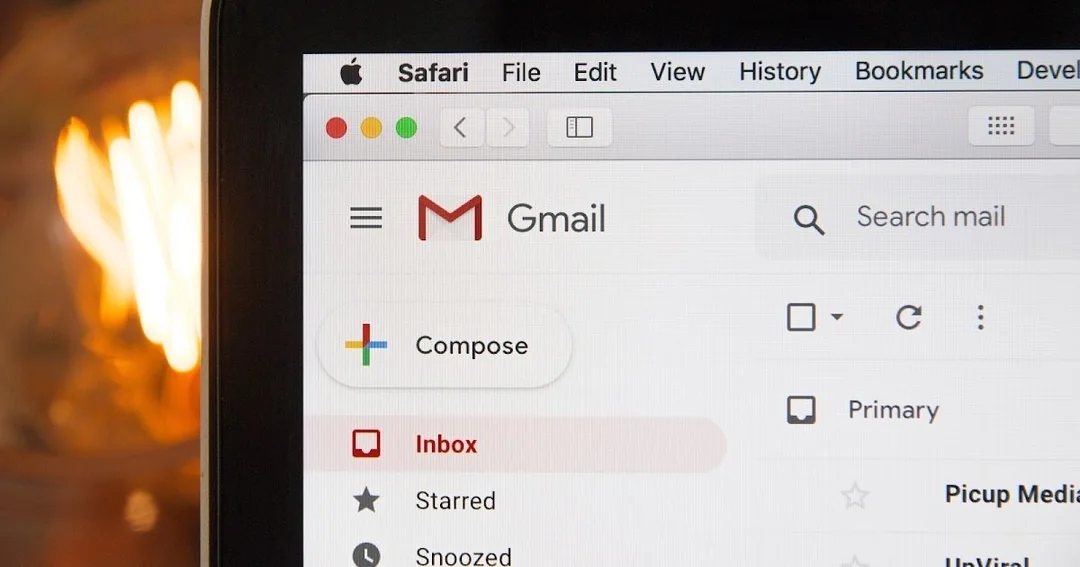
How to Unsend an Email: Sending an email to the wrong person or realizing a message has a typo or missing attachment is something most professionals have experienced at least once. Fortunately, many major email platforms now provide a short window to undo a message before it reaches the recipient, making it crucial to know how to unsend an email effectively.
Gmail: Quick Undo Options
On Gmail, users get five seconds by default after hitting Send to click the Undo option displayed at the bottom left of the screen. This window can be extended from 5 to 30 seconds by navigating to Settings → See all settings → General → Undo Send. Knowing how to unsend an email in Gmail ensures that accidental mistakes can be corrected almost immediately.
Outlook: Conditional Recalls
Outlook handles recalls differently depending on the account type. A message recall is only possible if both the sender and recipient have a Microsoft 365 work or school account within the same organization, and the recipient has not yet opened the email. Personal accounts such as Gmail, Hotmail, or Outlook.com do not support message recall. For newer versions of Outlook for Windows, users can enable an Undo Send option through Settings → Mail → Compose and reply, with a cancellation period of 5 or 10 seconds. This makes it important for Outlook users to understand how to unsend an email under specific conditions.
Also read : iPhone 17 Pro Max Price Drops in India: Save Up to Rs 30,000 With Latest Offers
Apple Mail: Undo Send on macOS and iOS
Apple Mail users on macOS Ventura (13.0) or later, or iOS/iPadOS 16.0 or later, can use the Undo Send feature. By default, users have 10 seconds to unsend a message, adjustable to 20 or 30 seconds via Mail Settings → Composing tab. Apple Mail’s approach adds flexibility for users learning how to unsend an email before it reaches the recipient’s inbox.
When Recalls Fail
Not all recall attempts are successful. Recalls fail if the recipient has already opened the email, uses a non-Exchange account like Gmail or Yahoo, or if the message has been moved out of the inbox by a rule. Yahoo Mail, for instance, does not currently offer an unsend or recall feature. In such cases, the best practice is to send a polite follow-up, such as: “Apologies, please ignore my previous message. Here’s the correct version for your reference.”
Prevention is Key
While learning how to unsend an email is helpful, prevention is more reliable. Reviewing drafts carefully, double-checking recipients, and enabling send delays are far more effective at reducing errors than any recall tool after the fact.